 Kerwise
Kerwise LAN Workspace: office chat, calls and meetings on your own network
Windows · macOS
What the app does, from talking between two computers in the first minute to a Workspace with groups, meetings and tasks — with your data kept inside your office.
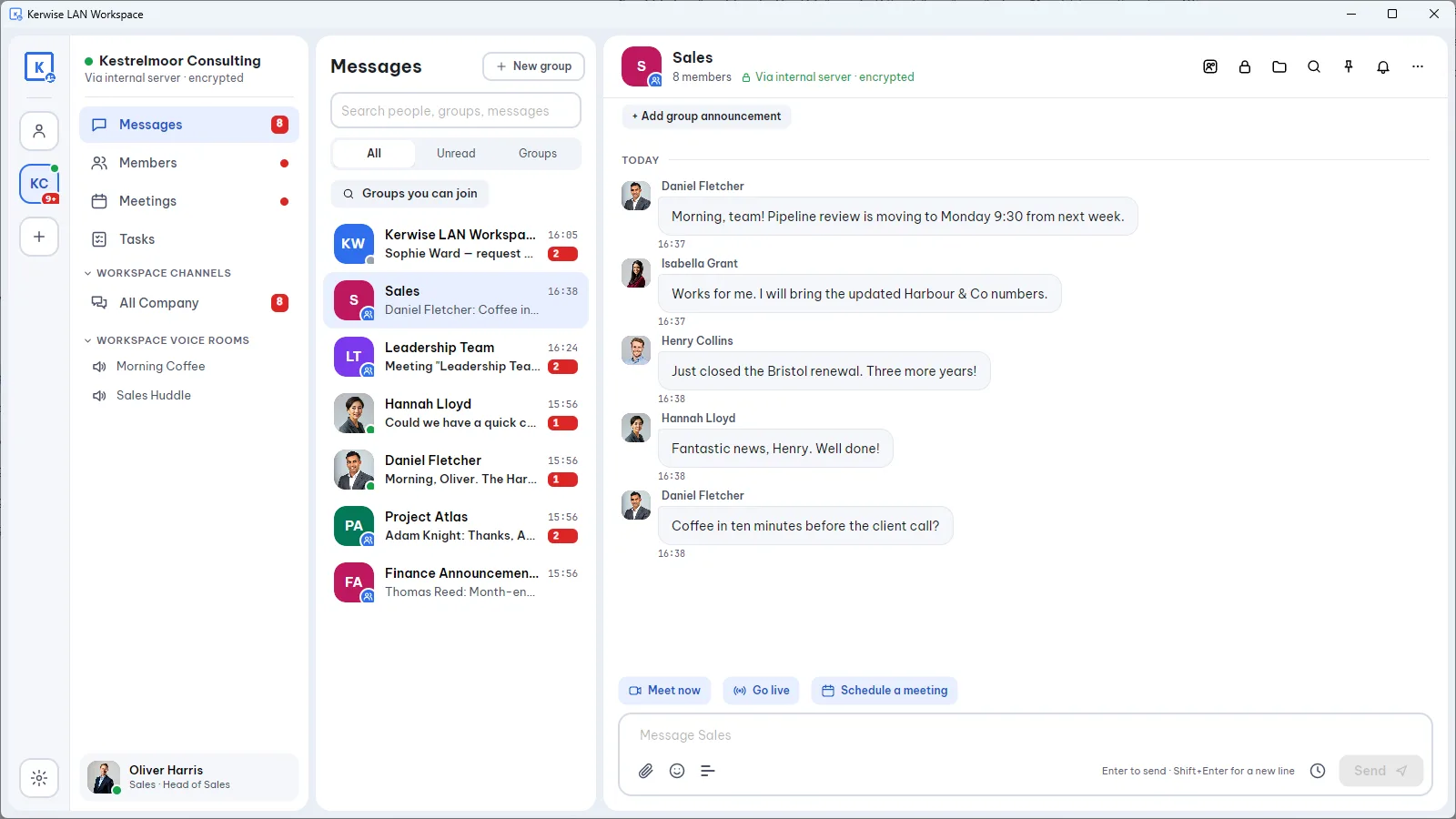
Most office chat tools send every message to a data center on the other side of the world, even when the person you are writing to sits two desks away. Kerwise LAN Workspace takes the short road: messages, files, calls and meetings travel over your own office network and stay on your own computers.
This page walks through what the app does, from the first minute after installing it to running a team of hundreds.
Minute one: talk without setting anything up
Install the app on two computers on the same network and they find each other. There is no account to create and no password to remember: each computer gets its own ID (it looks like KW-XXXX-XXXX).
In this Personal mode you can already:
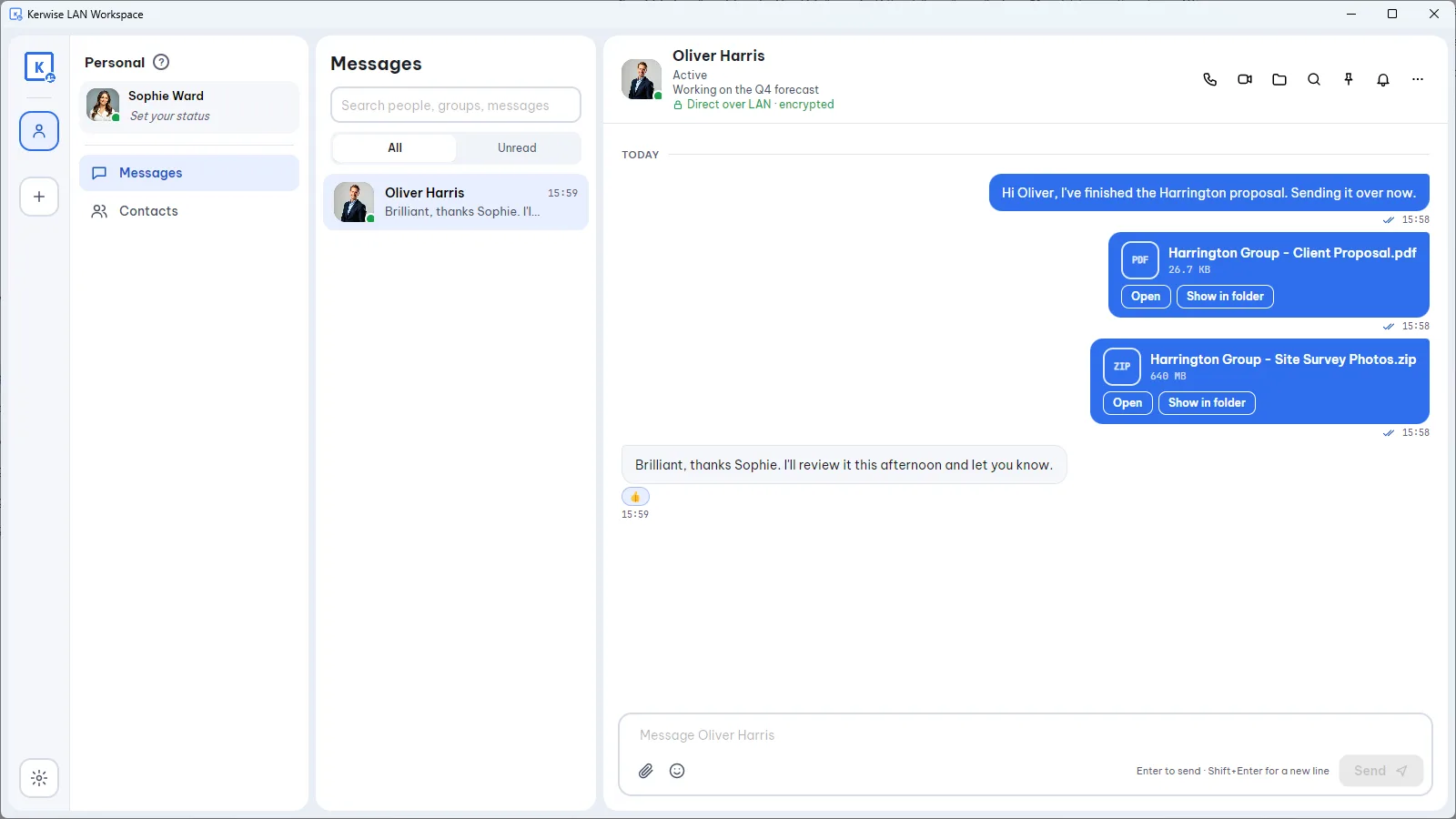
- chat one-to-one, with emoji, replies and read receipts;
- send files and photos straight from computer to computer;
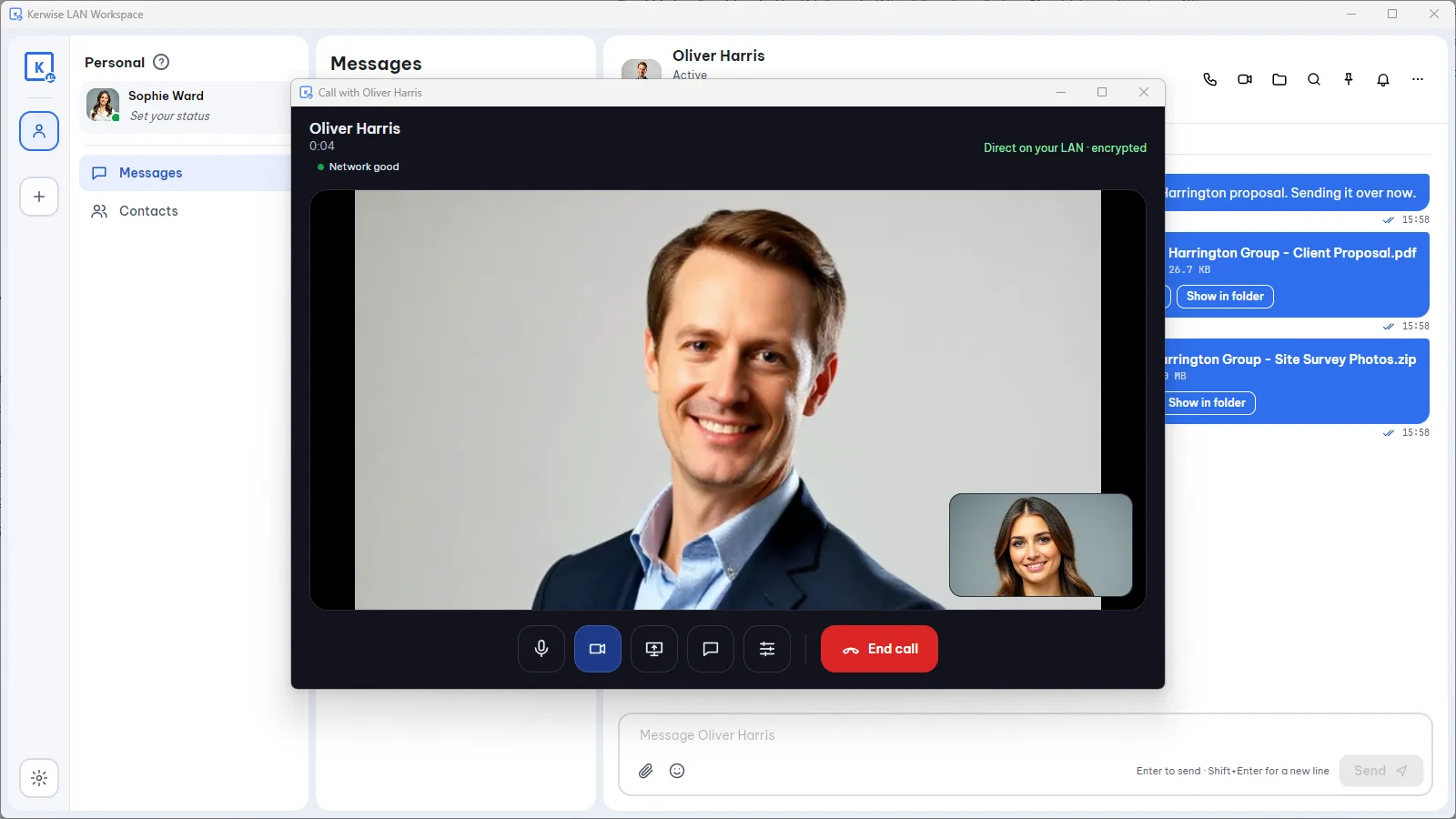
- make voice and video calls, and share your whole screen or one window during a call;
- keep chatting inside the call window, so you do not lose the thread.
If the other person has the app closed, your computer keeps the message and delivers it as soon as they open the app. Personal mode is free with no limits.
When the team grows: create a Workspace
A Workspace is a shared place for your company. One computer runs the internal server, the person who creates it becomes the Admin, and everyone else joins with an invite code. Creating and joining a Workspace is free.
With a Workspace you get everything in Personal mode, plus:
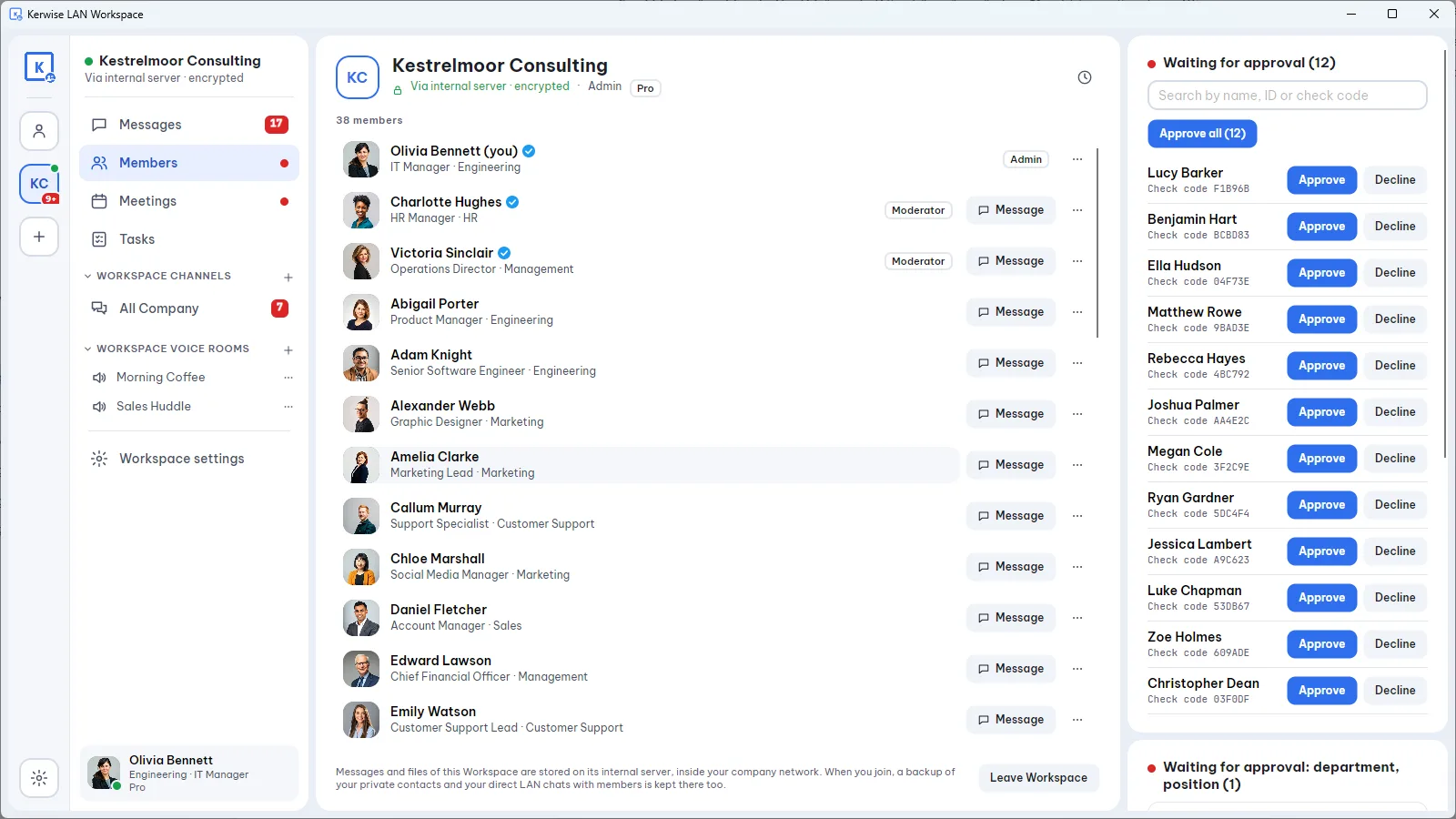
- Groups with group leaders and deputies, a member list and @mentions.
- Workspace Channels: a Public Channel for announcements to everyone.
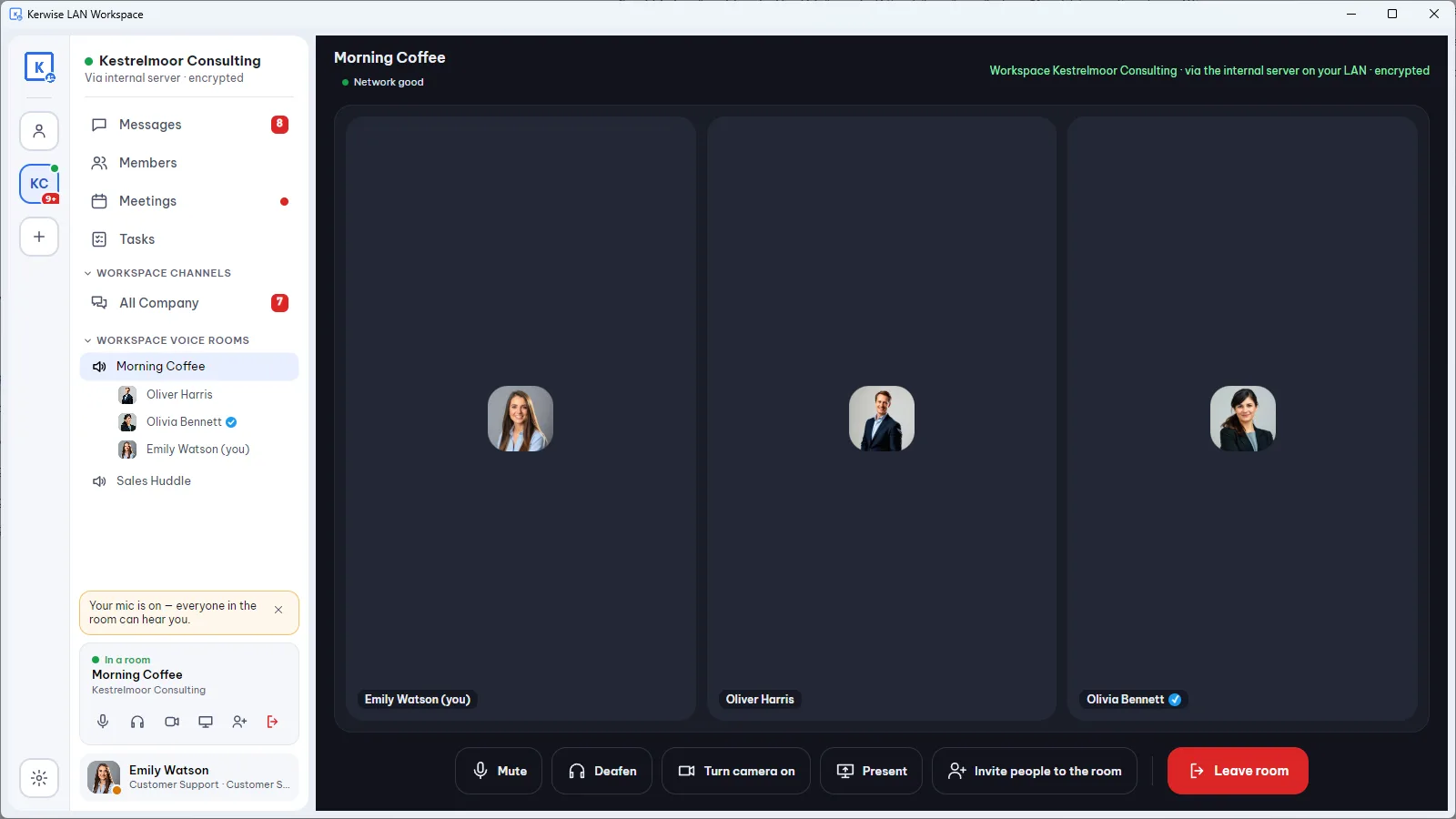
- Workspace Voice Rooms: voice rooms that stay open, so people drop in and out like walking into a meeting room.
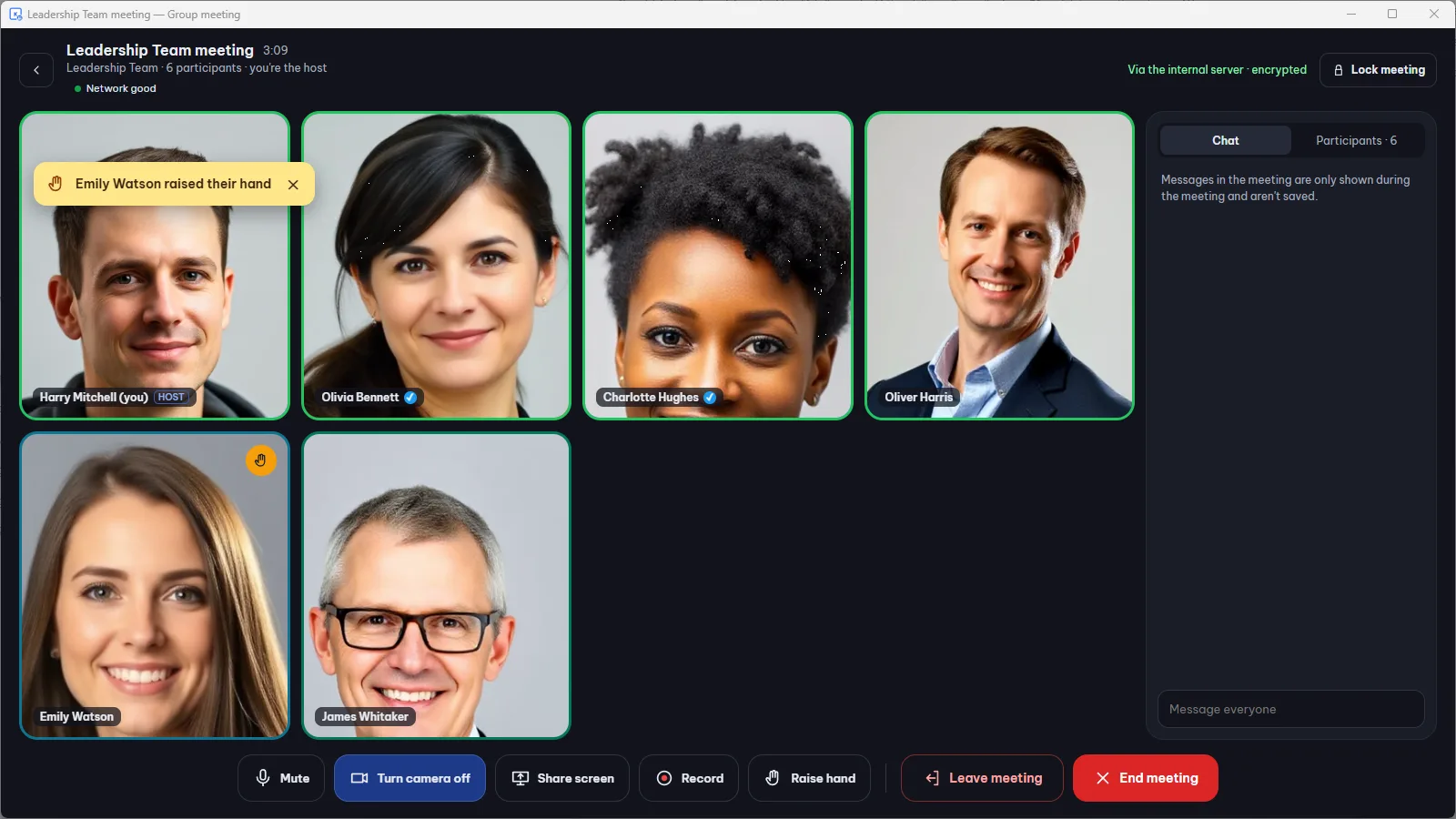
- Meetings inside a group: start one now or schedule it, get a reminder 15 minutes before, raise a hand, share screens, and record when your company allows it.
- Live streams for company-wide talks.
- Polls and scheduled messages.
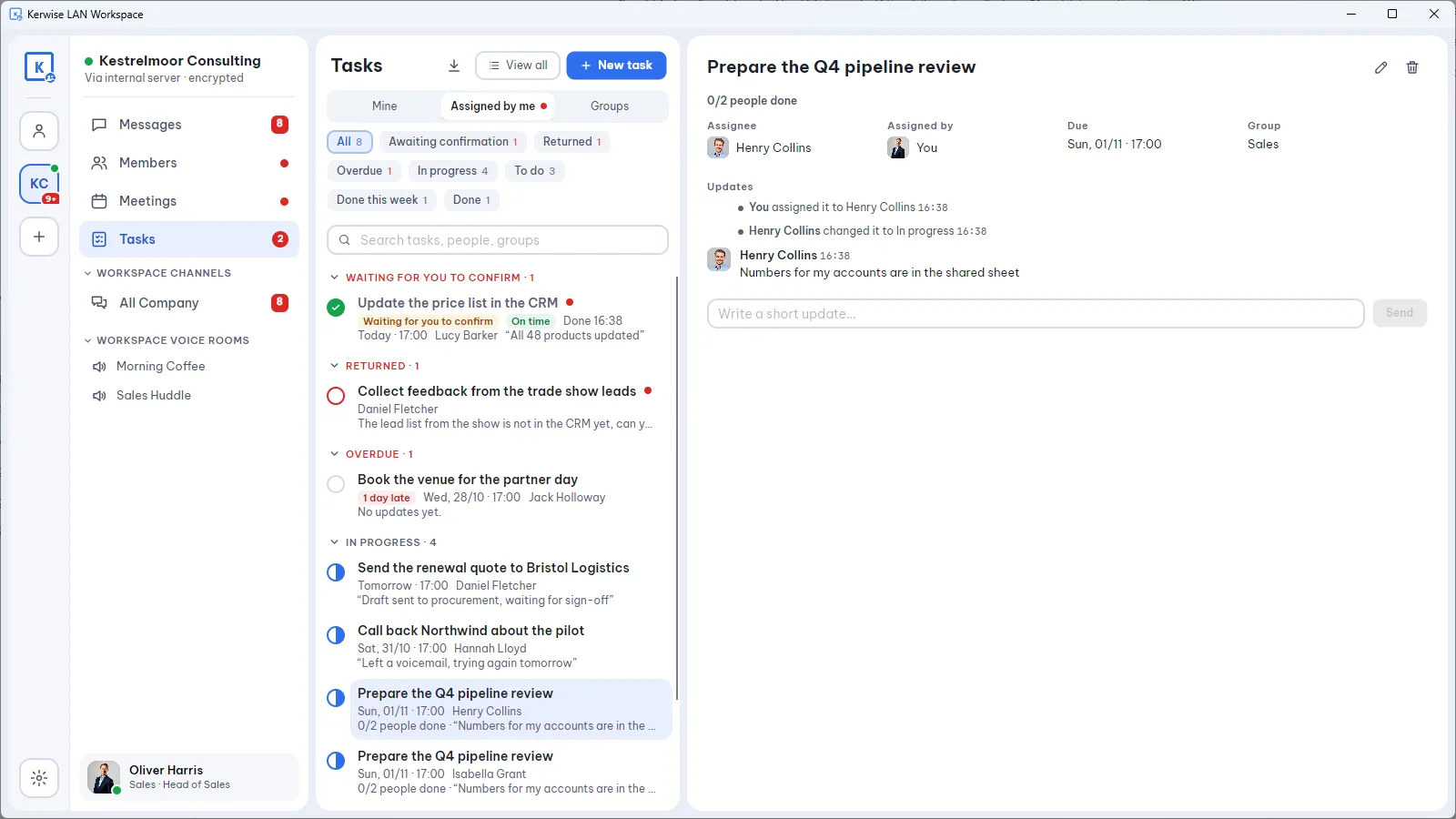
- Tasks: assign a job to one or several people, follow progress, export to CSV.
- Messages wait on the internal server, so people receive them even after the sender has shut down their computer.
The Admin can name Moderators to share the work: approving new members, managing groups, changing settings. There is also an optional "friends only" mode, where people must accept a friend request before they can message each other.
Who it suits
| Your situation | What helps most |
|---|---|
| A small office or shop, a few computers | Personal mode: install and talk, nothing to manage |
| A company with departments | A Workspace with groups, Channels and Tasks |
| A factory, a site or a ship with weak or no Internet | Everything runs over the local network |
| Teams that must keep data inside the company | Messages and files never leave your network |
Where your data lives
Messages, files and meetings stay on the computers in your network. All connections are encrypted. Kerwise does not receive and cannot see your content.
The internal server goes online only to check the Workspace license, and, if the Admin turns it on, to send an encrypted backup to your company's own S3 storage. The backup is locked with your own backup password before it leaves.
Running the internal server
The internal server runs alongside the app on a Windows or Mac computer that stays on. If you prefer a dedicated machine, there is also an internal server for Linux, installed with one command and managed from the app. A built-in health check tells the Admin when something is wrong, for example when the disk is nearly full.
What it costs
Personal mode is free. A Workspace of up to 10 members is free with every feature. From 11 members a Workspace needs Workspace Pro: one key for the whole internal server, priced by the number of members. Every new Workspace starts with a 30-day Pro trial with no member limit.
Kerwise LAN Workspace runs on Windows (from the Microsoft Store) and macOS. Download links, pricing and step-by-step guides are on the app's own website.